If you've ever run a talk, a livestream, or a show, you know the drill: someone needs to see a countdown, someone else needs a warning before it hits zero, and someone in the back needs a big obvious button to nudge it when the speaker runs long. Stage Timer is a small multi-device countdown for exactly that — a controller, a room display, and a speaker view, all showing the same countdown live, with no app to install and no account to create.
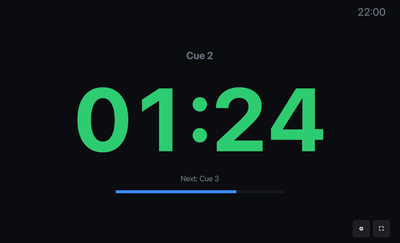
Stage Timer runs on its own server, so it opens in a new tab rather than living inside this page.
Getting started #
- Hit Open Stage Timer above, then Create room — you'll land on the controller, and a 4-character room code (like
K7QM) is generated for you. - The controller shows two share links with QR codes — one for the room display, one for the speaker view. Print the QR code, project it, or just copy the link.
- Anyone can also get to the room display by typing the code into the Join a room box on the homepage — no login, just the code.
- Hit Start. Every screen showing that code updates in real time.
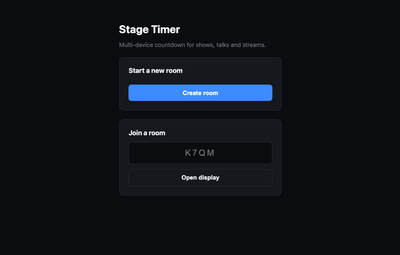
That's the whole setup. Everything else below is there for when the basic case isn't enough.
The controller, in more detail #
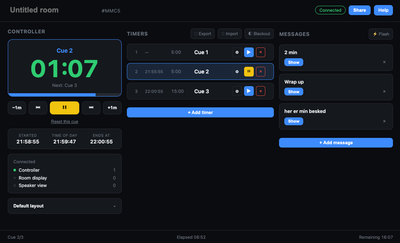
The big buttons are the ones you'll actually use live: Start/Pause, Reset, and four nudge buttons (−1 min, −30 s, +30 s, +1 min) for when a talk runs short or long. A live preview panel shows exactly what the audience is currently seeing — timer, colors, and any active message — so you never have to glance between two screens to know what's live.
Cues let you break a show into segments instead of one long countdown. Add a cue with a name, a duration, and a "wrap-up" threshold (the point where the display turns yellow as a warning). Click a cue to load it, drag cues to reorder them, or step through with Prev/Next. Turn on auto-chain on a cue and it rolls straight into the next one the instant it hits zero — handy for a fixed-format show (5 min intro → 20 min talk → 5 min Q&A) where you don't want to be pressing "next" live.
Pin a cue to Start at a specific time of day (like 19:00) instead of starting it by hand — every screen shows a neutral "Starts at" countdown until that moment, then flips to a normal running countdown with no click needed. Pressing Start early skips the wait, and it's always the next occurrence of that time — there's no date picker.
Built a cue list you'll want again? Export it as a JSON template and Import it into a fresh room instead of rebuilding it from scratch — Import replaces every cue currently in the room, so it asks for confirmation first.
Messages are how you talk to the speaker without walking on stage. Type something and hit Send, or use a built-in preset (2 min, Wrap up, Slow down, Audio issue) — click a preset and it's sent immediately. Add your own presets; they're remembered on your device for next time. Toggle Flash for something urgent, or Warning style to make it visually distinct on the speaker's screen.
Display options control what the room display shows: the wall clock, a progress bar, the cue name, the next cue's name, and an optional room name (like "Studio 3") in the corner. Hit Blackout to instantly kill the display to black — useful between segments or if something needs to not be on screen. Display preferences are remembered per-device, so the next room you create starts the way you like it.
A layout for every screen #
The room display has six layouts, picked from the controller's Display card:
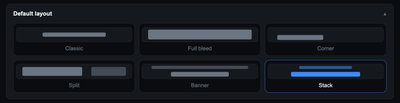
- Classic — the default, centered look.
- Full bleed — digits fill almost the entire screen, best for the back row.
- Corner — everything shrinks into a small semi-transparent panel anchored bottom-left, for an unobtrusive overlay (pairs well with
?transparent=1, below). - Split — a ProPresenter-inspired stage-monitor look: room name, cue name, a large countdown and a large wall clock side by side, and the next cue, each boxed with its own caption; a message takes the right side of the screen.
- Banner — the message becomes a bold strip across the top, digits fill the rest and recenter automatically once the message clears.
- Stack — the message floats above the digits as a rounded card, like a notification.
Every layout shows the room's current message, not just the speaker's screen — switching layouts only changes where the message sits, never whether it's there.
If you're running more than one physical display — say, a big screen at the back of the room and a corner overlay baked into your stream — add ?layout=fullbleed, ?layout=corner, ?layout=split, and so on to a specific display's URL and that one device stays pinned to its own layout regardless of what the controller has set as the room's shared default. You can also change it live without editing a URL: hover the bottom-right corner of the room display for a small gear icon with the same layout picker.
The speaker view deliberately isn't wired to the controller's layout at all — it's usually one specific device belonging to one specific person, so it shouldn't change out from under them just because someone adjusted the room display. Instead, pick it in the link: ?layout=big scales up both the countdown and the message together for a screen sitting further away, and ?layout=message-focus flips the priority entirely — the message becomes the dominant element and moves above the clock, for when what it says matters more than the exact number. Same as the display, you can also set this from a gear icon in the speaker screen's bottom-right corner instead of editing the link.
Built for the booth, not just the browser #
The room display supports two more URL flags that matter if you're running this into a video mixer:
| Parameter | Example | Description |
|---|---|---|
transparent |
?transparent=1 |
Transparent background, for use as a browser source in OBS, vMix, or CasparCG. |
minimal |
?minimal=1 |
Strips everything except the digits themselves, for the cleanest possible on-screen graphic. |
Digits shift color as a cue runs down — green, then yellow at the cue's wrap-up threshold, then red at zero — and keep counting into negative overtime instead of stopping, so a talk that runs over is exactly as visible as one that hasn't started yet.
A fullscreen button and a best-effort screen-lock request appear on hover, bottom-right, so a dedicated display device won't dim or sleep mid-show.
Keyboard shortcuts #
Once you're running a show, reaching for a mouse is one interaction too many. These work on the controller, and are ignored while you're typing in a text field — except Esc, which always clears the message:
| Key | Action |
|---|---|
| Space | Start / pause |
| R | Reset |
| ↑ / ↓ | ±1 minute |
| ← / → | Previous / next cue |
| B | Blackout |
| M | Jump to the message box |
| Esc | Clear and hide the message |
Stream Deck / Companion support #
If you run shows with a Stream Deck or Bitfocus Companion, the controller page shows a control token and a ready-to-use URL. Point an HTTP-request action at it and you can trigger actions from physical hardware — no browser tab required on that machine at all:
POST /timer/api/<code>/<action>?token=<token>
Supported actions: start, pause, reset, next, prev, adjust (with &ms=60000), message (with &text=...), and blackout (with &on=true).
Why the countdown never drifts #
The reason this doesn't drift is that the server never says "9 minutes and 42 seconds left." It only ever says "this countdown ends at this exact clock time." Every screen does its own math from there, correcting for its own clock being slightly off from the server's — the same trick NTP uses to sync clocks across a network. That's also why a screen that loses Wi-Fi for thirty seconds mid-show comes back showing the correct time instead of a frozen or drifted one: it just asks "what's the current state?" on reconnect and recalculates.
What it isn't (yet) #
This is a first version, deliberately narrow in scope: no accounts, no billing, no database. A room lives only in memory while the server keeps running — restart it and every room is gone. If a controller link still loads but says the room isn't found, a Recreate this room button spins up a fresh one under the same code, so the display and speaker links (and any printed QR codes) keep working — it starts empty, though, and a Stream Deck or Companion button will need its control token updated, since that's never recoverable.
There's also no access control beyond obscurity: anyone with the room code can open its display or speaker view, and anyone with the control token can drive it over the Stream Deck endpoint above. Treat both like a meeting link — fine to hand to your team, not something to post publicly.
That's a trade-off for simplicity, not an oversight, and it's fine for how this gets used: create a room, run the show, done.